Fetch, Pull & Push in Git
This article belongs to the Git Basics to Advanced course, which is currently being revisited with updated architectural patterns and content. Content may be refined shortly.
Understanding Remote Repositories
When working with Git, we often deal with remote repositories (repos hosted on GitHub, GitLab, etc.). The three key actions when working with remotes are:
- Fetching → Get the latest changes from the remote repo without applying them to your working directory.
- Pulling → Get the latest changes and apply them immediately (fetch + merge).
- Pushing → Send your local changes to the remote repo.
Interactive Remote Synchronization Explorer
Step through the interactive timeline below to see how changes move between the remote server, local tracking branch, and local working branch:
Remote Synchronization: Fetch vs Pull vs Push
Step 1 of 4: All Tiers in Sync at Commit C1
$ git status Remote (GitHub), Local Tracking (origin/main), and Local Branch (main) all match.
Setting Up a Local and Cloned Repository
mkdir project
cd project
git init
echo 'hello first time' > file
git add file
git commit -am file
cd ..
git clone project cloned_project
Now we have two directories:
project(the original repository)cloned_project(a clone of the original repository)
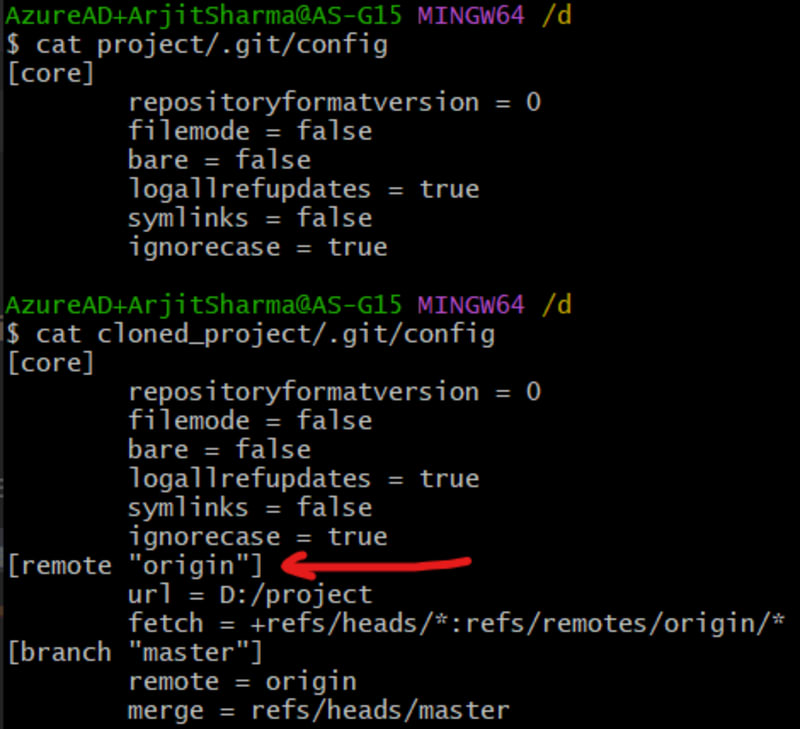
If we compare the config of both, we see how Git tracks remotes:
cat cloned_project/.git/config
cat project/.git/config
The cloned repo has a remote section configured called origin:
Checking Remote Repositories
A cloned repository automatically sets up a remote connection:
cd cloned_project
git remote -v

This shows origin pointing to the original repository for both fetch and push operations.
1. Fetching (Getting Changes Without Applying Them)
git fetch downloads commits, files, and refs from the remote repo into your local repository, updating local tracking branches like origin/master.
Crucially, fetch does not modify your working directory or alter your local branches:
# Make some changes in the remote project:
cd ../project
echo 'Another line added' >> file
git commit -am "remote update"

# Fetch changes in the cloned repository:
cd ../cloned_project
git fetch origin master

# Verify that changes have been fetched but not applied:
git log --oneline --graph
git branch --all

Notice that the changes live on the remote-tracking branch remotes/origin/master. Your local master is untouched until you merge:
git merge origin/master
2. Pulling (Fetching + Merging in One Step)
Instead of running fetch and merge separately, git pull downloads and integrates incoming changes in a single command:
git pull origin master
Pull with Rebase
To avoid extra merge commits when both your local branch and remote branch have diverged, use --rebase:
git pull --rebase origin master
3. Pushing Code
When you create commits locally and want to publish them to the remote repository for collaborators to access:
cd cloned_project
git checkout -b feature
echo 'Added new feature' >> file
git commit -am 'Feature added'

# Push feature branch to origin:
git push -u origin feature
Now the feature branch is available in the remote repository for team members and pull requests.