Reflog in Git
This article belongs to the Git Basics to Advanced course, which is currently being revisited with updated architectural patterns and content. Content may be refined shortly.
Table of Contents
4 sections
Reflog stands for Reference Log. It is an internal history of every single change made to HEAD in your local repository—functioning as Git’s hidden “undo history”.
Even if you remove the last commit or mess with history, Git still keeps track of them for some time.
git checkout HEAD^     # Refers to parent commit of current HEAD, move back 1 commit
git branch -f master   # Force creation/reset of master branch to previous commit
git checkout master    # Switch working directory to master branch
git log
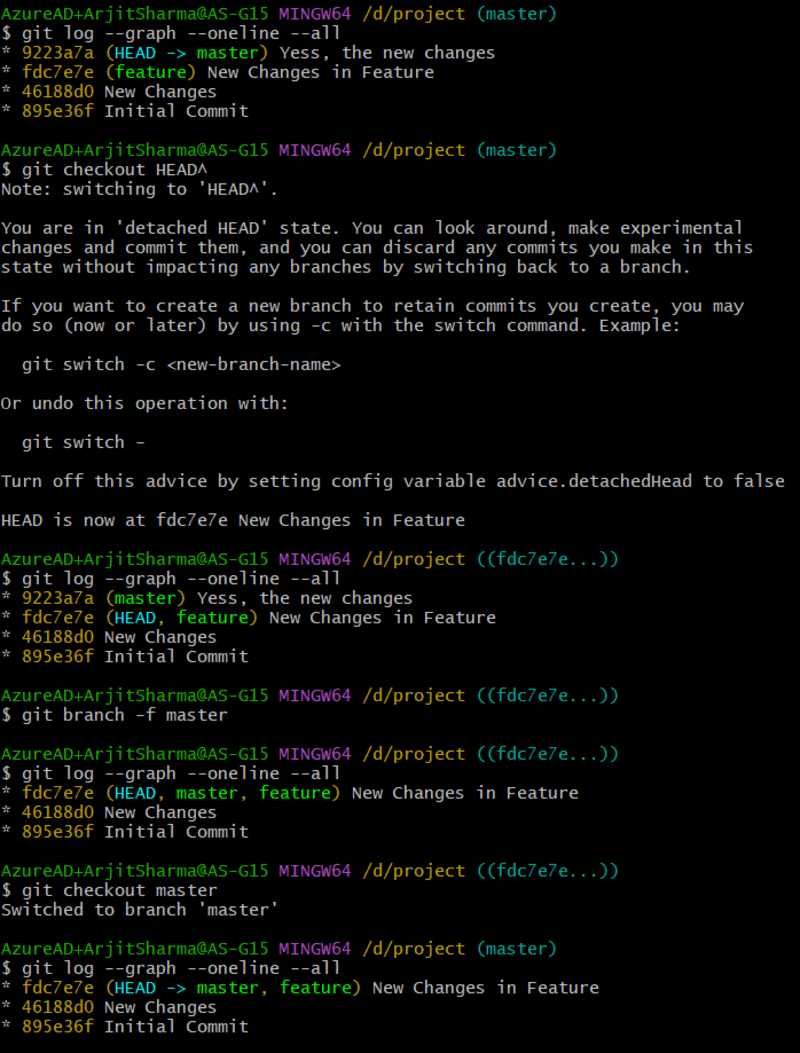
Reflog records all movements of branches and HEAD in the repository. It contains references to the state of the repo at various points, even if those points are no longer reachable within standard git log.
1. Interactive Reflog Safety Net
Step through the interactive timeline below to see a commit disappear from git log after an accidental hard reset, and watch it get resurrected through git reflog:
Git Reflog Safety Net
Step 1 of 3: Normal History with Commits C1..C3
$ git log --oneline C3 contains your feature work. Both git log and the internal reflog show HEAD at C3.
2. Rescuing Lost Commits
Step 1: Open the Reflog
git reflog
Typical output:
c20002b HEAD@{0}: reset: moving to HEAD~1
c30003a HEAD@{1}: commit: Add auth controllers
c20002b HEAD@{2}: commit: Add database models
Notice that before the reset at HEAD@{0}, HEAD was at c30003a (HEAD@{1}).
Step 2: Restore the Commit
You can restore the commit directly:
# Reset back to the commit recorded in reflog:
git reset --hard HEAD@{1}

# Or restore by exact commit hash:
git reset --hard 9223a7a
Alternatively, you can create a new branch at that commit to safely inspect it without modifying your current branch:
git branch recovered-branch HEAD@{1}